Content

How to Turn Cursor’s API into an MCP Server (and Use It From Notis)
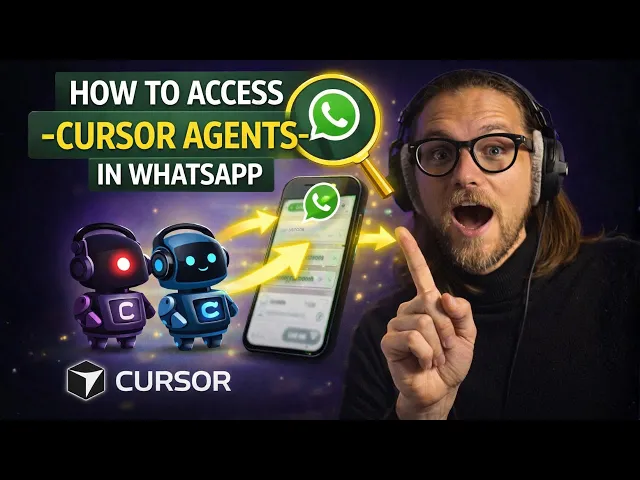
You already have Cursor running background agents, which is great… until you realize you can’t talk to those agents from where you actually work.
Most founders don’t live inside a single app. You’re in Telegram with customers, Slack with the team, WhatsApp with contractors, iMessage with friends, and email with everyone else. Your agents being trapped inside Cursor is the productivity equivalent of having a brain that only works in one room.
In this guide, I’ll show you how to take Cursor’s API and expose it as an MCP server using Ogment.ai, then plug that MCP server into Notis. Once it’s wired, you can trigger Cursor background agents from your favorite chat surface, without building custom integrations for each platform.
What we’re building (and why it matters)
Cursor has an API for managing background agents. The catch is that Cursor hasn’t shipped a ready-to-use MCP server you can connect to tools like Claude, Notis, or anything else that speaks MCP.
So we create the missing adapter layer ourselves. Ogment.ai is the easiest way I’ve found to turn an OpenAPI spec into a working MCP server, including authentication and a test console.
Once that MCP endpoint exists, Notis can connect to it, and suddenly Cursor background agents are not “a Cursor feature” anymore. They become a capability you can invoke from Telegram, iMessage, WhatsApp, Slack, or email.

Before you start
You’ll need access to Cursor’s API, an Ogment.ai account, and your Notis workspace.
The only “technical” thing you’ll do is create a Basic auth header from your Cursor API key. It sounds scary, but it’s literally one encoding step.
Step 1: Get your Cursor API key
Head into Cursor, grab your API key, and keep it somewhere safe. Treat it like a password. If you leak it, anyone can do whatever the API allows.
Once you have it, you’re going to encode it.
Step 2: Base64-encode the key (for Basic auth)
Cursor’s API expects Basic authentication using a Base64-encoded credential.
Take your Cursor API key and Base64-encode it. The output will look like random characters with maybe an equals sign at the end. To do so run this in your terminal:
Set that key aside, we’ll need it in the next step.
This is the single most common place people mess up. If your calls fail with auth errors, come back here and double-check you didn’t accidentally encode extra spaces, newlines, or the wrong value.

Step 3: Create an MCP server in Ogment.ai from Cursor’s OpenAPI spec
Now the fun part.
Inside Ogment.ai, create a new MCP server and choose the option to generate it from an OpenAPI specification. Import Cursor’s OpenAPI spec (the same one Cursor uses to document its endpoints). Ogment will parse the schema and automatically turn endpoints into MCP tools.
At this point, you’re not “coding an integration.” You’re mapping an API contract into a tool interface.
Step 4: Configure authentication in Ogment (the exact header)
In your MCP server settings in Ogment, set the authorization header to:
Basic
Again, that’s the word Basic, a space, and then your Base64-encoded Cursor key like this:
Once it’s set, save the configuration.
Step 5: Test the MCP server before connecting anything else
Ogment gives you a way to test tool calls. Use it.
Trigger a simple Cursor API action, like listing agents or checking a lightweight endpoint, just to verify your auth and schema import are correct.
If something doesn’t work, fix it here first. Debugging at this stage is clean. Debugging once you’ve connected multiple systems is chaos.
Step 6: Create/publish the MCP endpoint
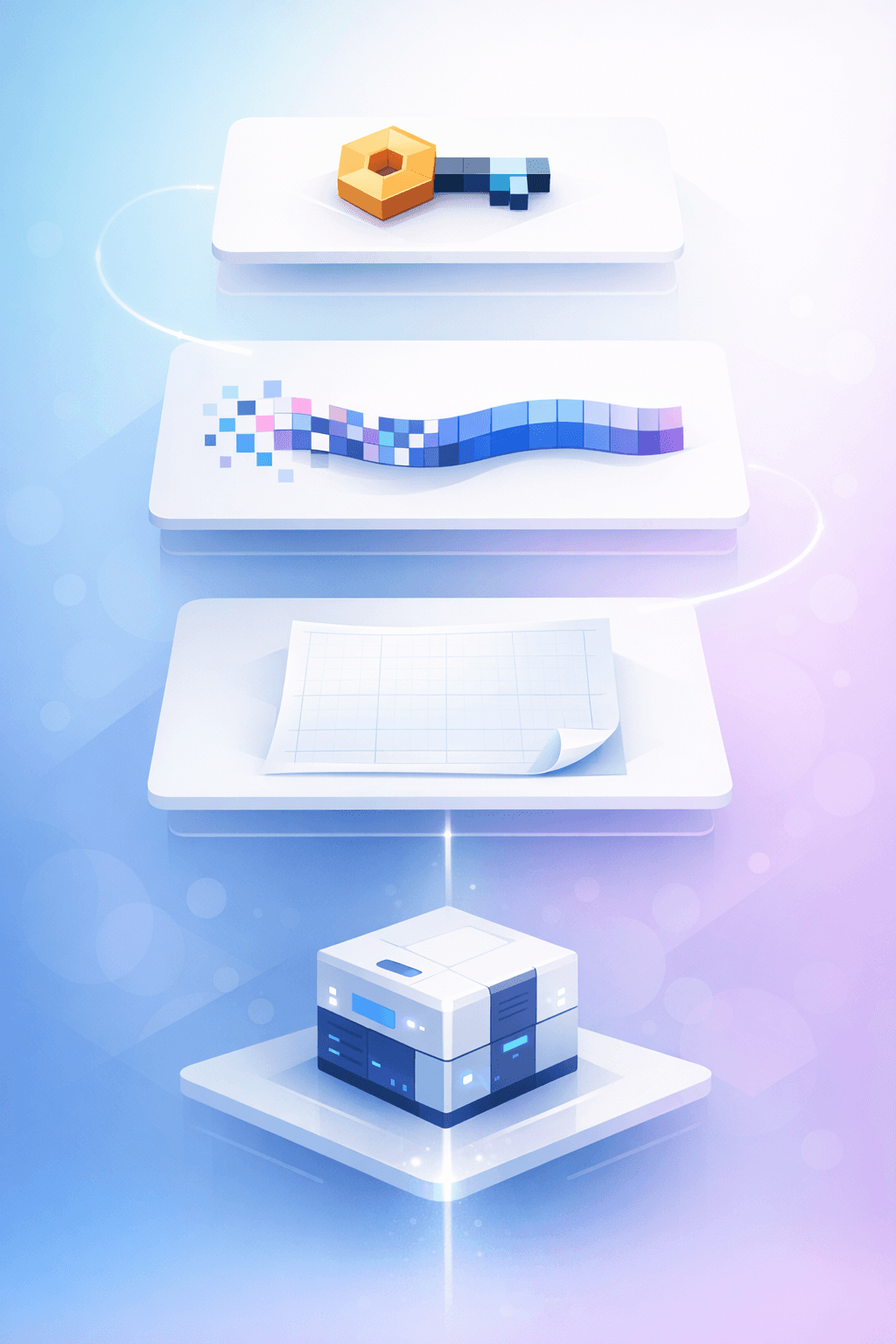
Once your tests pass, publish your MCP server in Ogment.ai so it has a stable endpoint you can connect to.
Make sure you keep an eye on permissions and scope. Don’t expose more tools than you need, especially if you plan to use the server from multiple chat channels.
Step 7: Connect the MCP server to Notis
Now go to the Notis portal and connect a new MCP integration. Paste the MCP server endpoint from Ogment, follow the connection flow, and validate that Notis can see the tools.
Once it’s connected, you can route requests from Telegram, iMessage, WhatsApp, Slack, and email into Notis, and Notis can invoke your Cursor background agents through MCP.
This is the moment where everything clicks: Cursor becomes the execution engine, Notis becomes the interface layer, and your chat apps become the command line.
What you can do once it’s connected
The obvious use is delegating background work to Cursor from wherever you are. The less obvious use is building a “distributed workflow” where the same agent can be triggered by a Slack message from your team, an email from a customer, or a WhatsApp voice note you forwarded.
The constraint stops being “does Cursor support this channel?” and becomes “what tools do I expose through MCP?”
This works with any OpenAPI-based API
Cursor is just the example.
If an API has an OpenAPI spec, you can usually wrap it into an MCP server using the exact same pattern: import spec, configure auth, test, publish, connect.
That’s the bigger shift happening right now. We’re moving from one-off integrations to reusable protocol adapters. MCP is the connective tissue.
Quick troubleshooting (the stuff that wastes hours)
If the MCP tools show up but calls fail, it’s almost always an auth header formatting issue.
If nothing shows up in Notis after connecting, the endpoint is usually wrong or the server isn’t published.
If tests fail in Ogment, fix them there first. Don’t “hope it works” in Notis.
If you want, I can sanity-check your setup
If you tell me what step you’re stuck on and what error you’re seeing, I can help you pinpoint the failure fast. Most issues come down to one of three things: the OpenAPI spec import, the Basic auth encoding, or the endpoint you pasted into Notis.

Flo is the founder of Mind the Flo, an Agentic Studio specialized into messaging and voice agents.