Content
How to Create Ads in Notion (and Generate New Creatives with Notis)
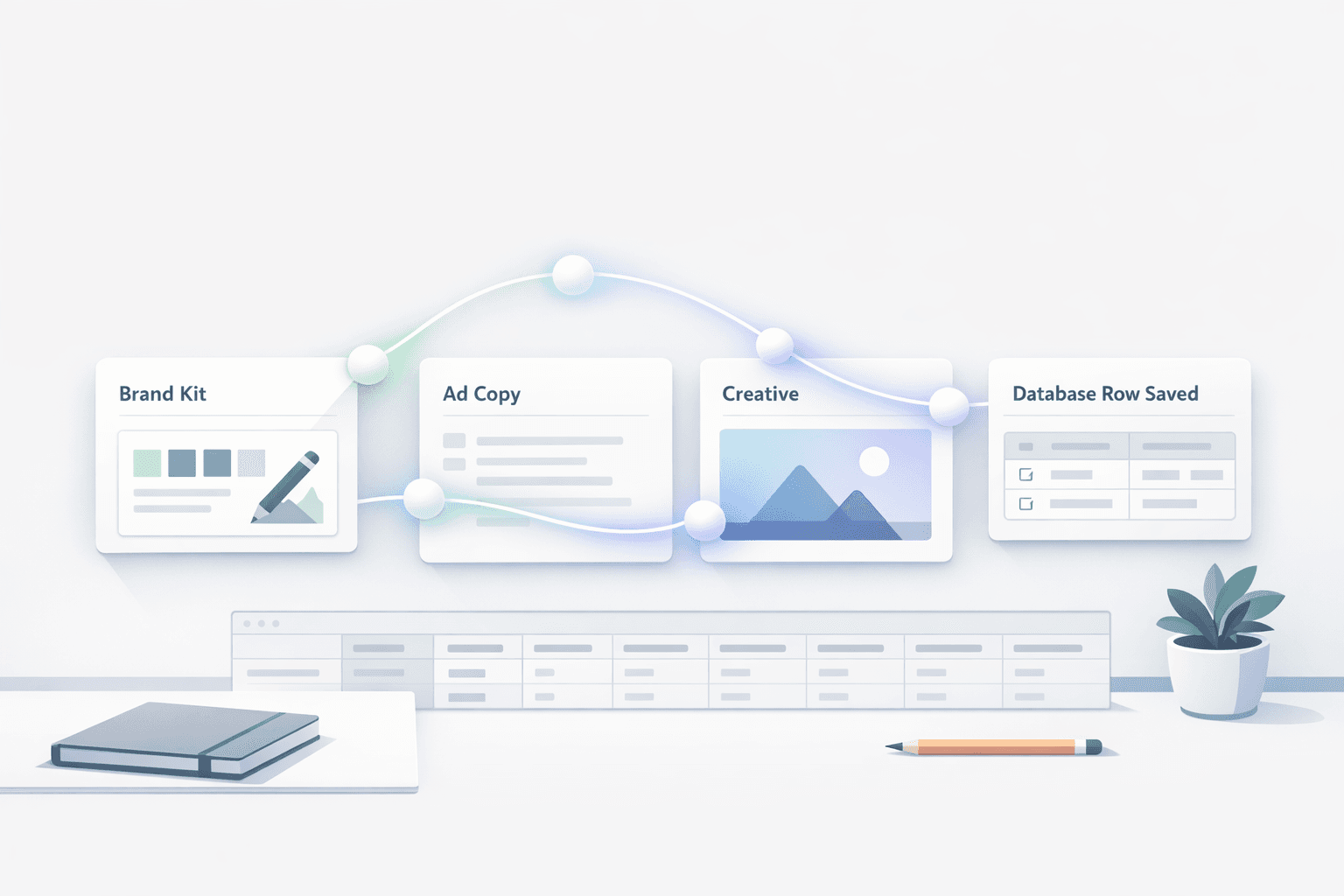
You don’t need a huge creative team to ship great ads every week. What you need is a repeatable system: one place for brand context, one place to track ad iterations, and a simple way to turn references into fresh creatives. Here’s the exact Notion setup I use so Notis can generate new ads on demand, without losing brand consistency.
Start with a Brand Kit Notion page (this is the part everyone skips)
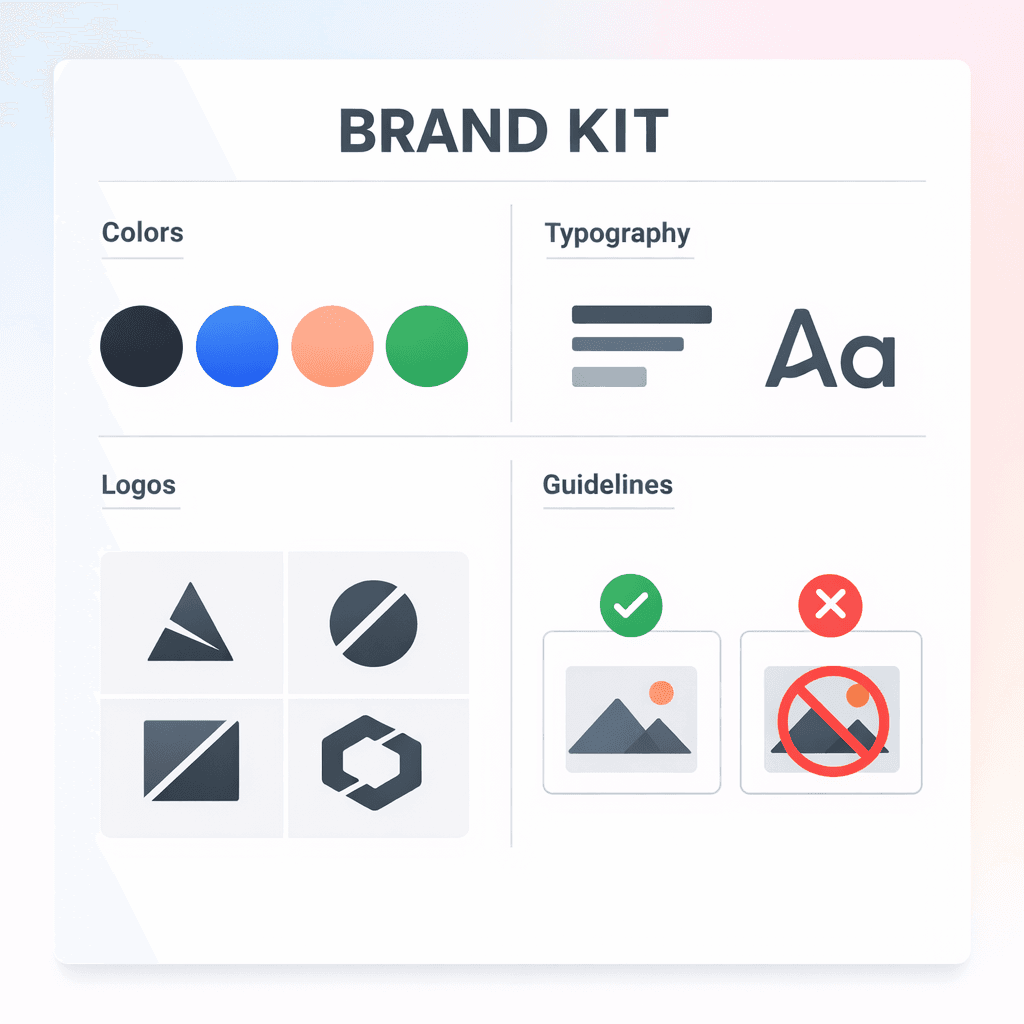
Before you generate anything, you need to make your brand easy to “load” in seconds. Create a Notion page called something like “Brand Kit” and treat it as the single source of truth for your creative.
Your Brand Kit should include your colors with their hex codes, your typography choices, your logo exports, and a handful of real screenshots that show how your product should look in the wild. Add a short section for what is absolutely allowed and what is off-limits, because that’s what prevents “pretty” ads that still feel off-brand.
Once that page exists, copy the link to it. You’ll use it as the anchor reference for the database you build next, so anyone (including Notis) can find it instantly.
Create an “Ads” database in Notion
Now you need a dedicated home for ad production. Create a Notion database called “Ads”. Keep it intentionally simple so you can iterate fast.
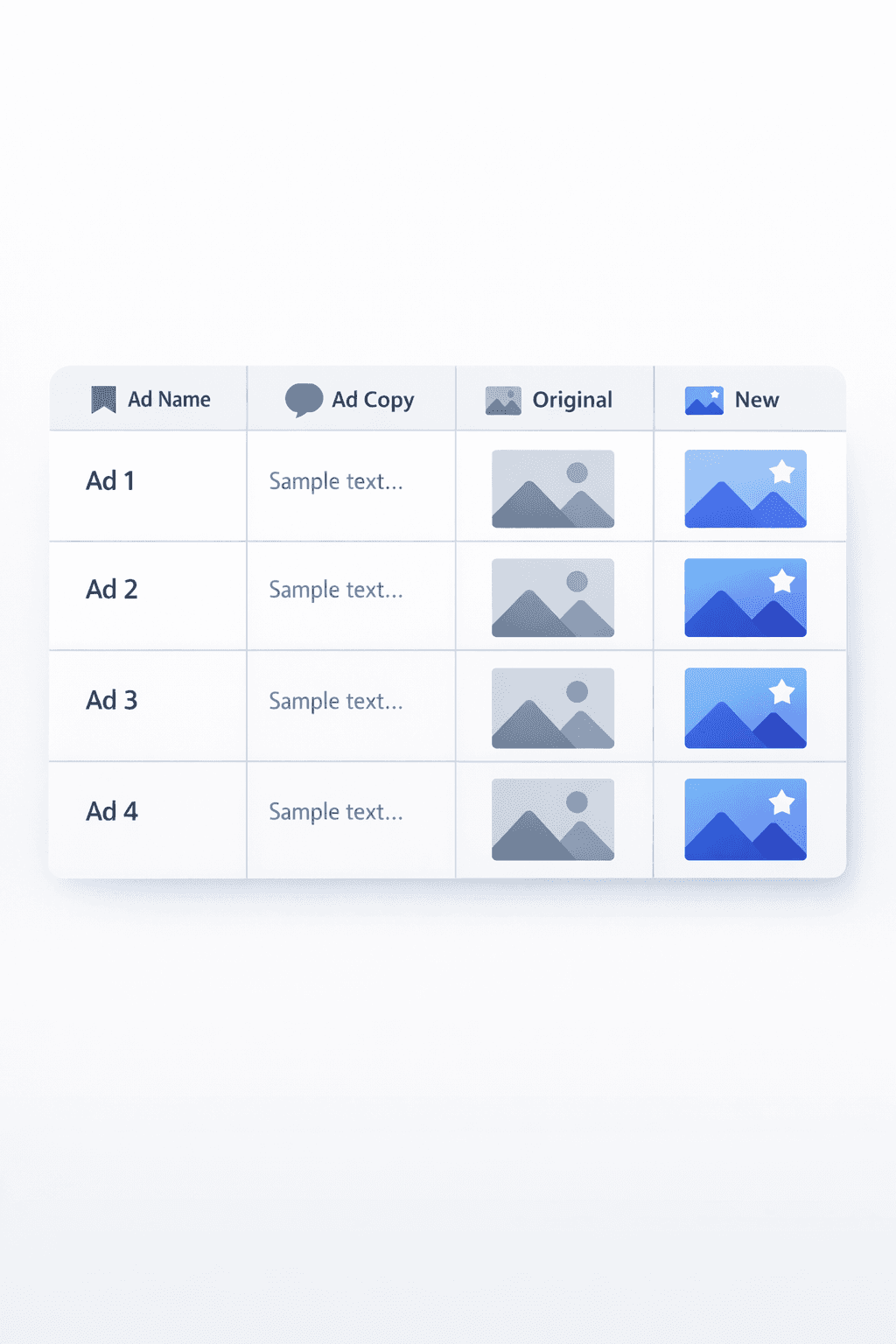
The first property is the title, which you can name “Ad name”. Add a text property called “Ad copy” for the writing. Then add two file properties: one called “Original creative” for whatever reference or starting asset you have, and one called “New creative” for the outputs you want to ship.
In the database description, write clear operating instructions. The goal is that a single row contains everything needed to understand what was asked, what was provided as input, and what was produced as output. This is also where you paste the link to your Brand Kit page so it’s always one click away.
Connect the Ads database to Notis
The magic only happens once Notis can actually see the database and your brand context.
If you’re using Portal + Sync, connect the workspace and sync the Ads database. If you prefer a lighter setup, use Notion Connections and grant Notis access to the database and the Brand Kit page. If you already have an area synced (for example a Marketing or Growth area), you can also nest the Ads database under that already-synced structure so it’s automatically in scope.
The goal is simple: when you ask Notis for a new ad, it shouldn’t have to guess where your brand rules live or where the deliverable should be saved.
Gather inspiration like a creative director (without becoming one)
At this point, you’re ready to feed the system.
Most of the time, the fastest way to get to a strong ad is to start from a real reference. Facebook Ad Library is great for direct competitor research. Instagram is great when you want to capture the “native” feel of a format, like Stories or Reels ads. When you see something good, take a screenshot and save it.
Then add a new row in your Ads database and upload the screenshot to “Original creative”. Give the row a name that describes the angle, not the design. You’ll thank yourself later when you’re searching through past winners.
Ask Notis to create the ad (the prompt matters less than the brief)
When you’re ready, send Notis the reference screenshot and a concise task. The task should explain what the ad is for, who it’s aimed at, and what you want the viewer to do next. If there’s a constraint that matters, like “must mention the free trial” or “keep the tone playful”, include it. If you want multiple variations, ask for them explicitly.
Under the hood, what you’re really doing is turning your taste into an input the system can reuse.
What happens behind the scenes (so you can trust the output)
When you delegate “create this ad” to Notis, it’s not just generating an image and calling it a day.
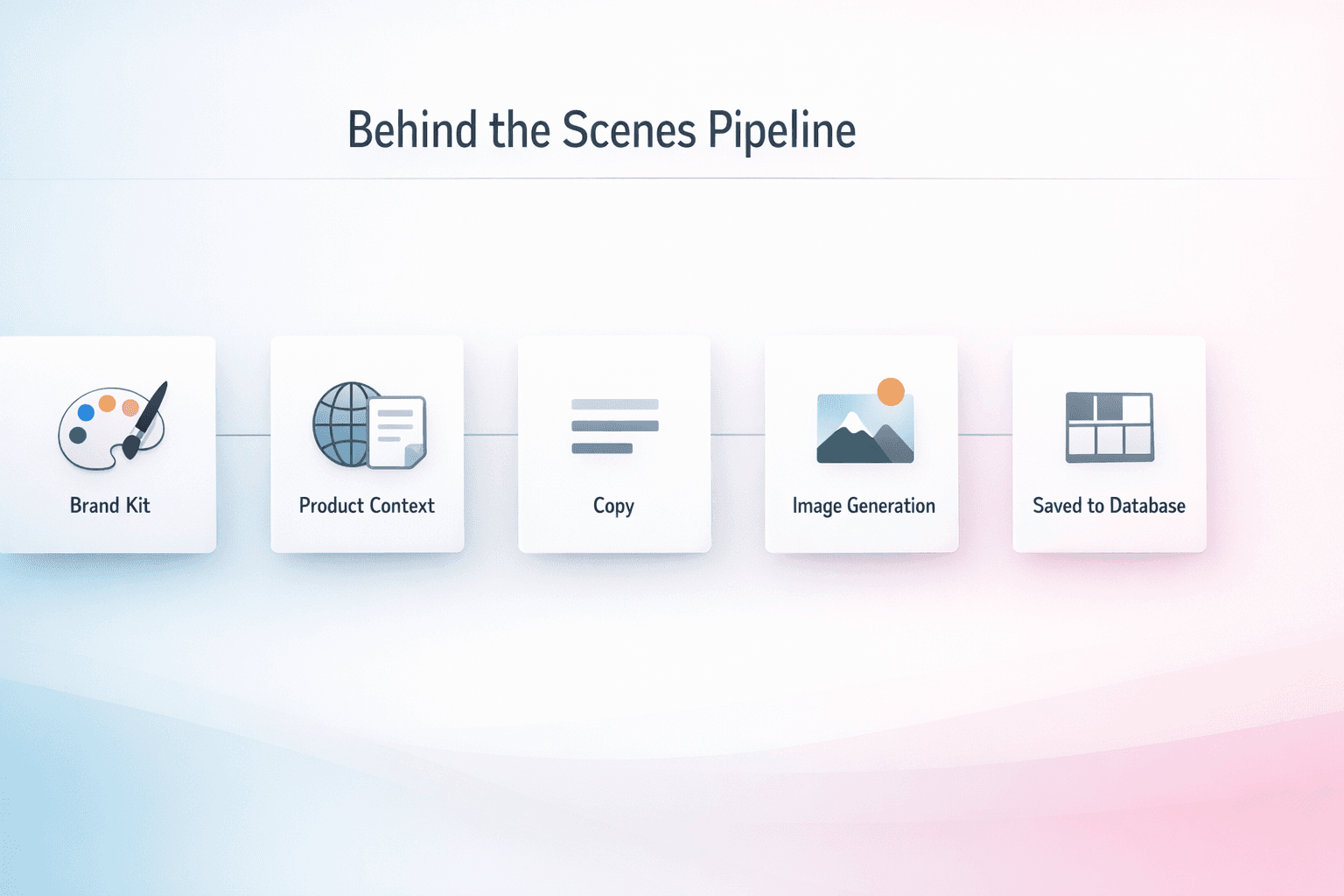
First, the request gets triaged into a plan. That plan figures out what context matters and what the deliverable should look like. Then Notis fetches the Brand Kit page and any relevant product context, like your website or screenshots you’ve already stored. After that, the image model generates new creatives that follow your brand constraints, and the result is saved back into your Ads database.
That last part is key: the system doesn’t end with an output. It ends with an organized asset inside the workflow you already use.
The fastest way to make this work for you
If you only do one thing, do the Brand Kit page first. Every time you tighten that doc, every future creative gets better with zero extra prompting.
Once you’ve got the database and the connection set up, the workflow becomes stupidly simple: capture a reference, drop it into a row, ask for a new version, and ship.
If you want, reply with the kind of ads you’re running (format, channel, and goal), and I’ll help you write the exact database description instructions so Notis generates the right output every time.

Flo is the founder of Mind the Flo, an Agentic Studio specialized into messaging and voice agents.