Content
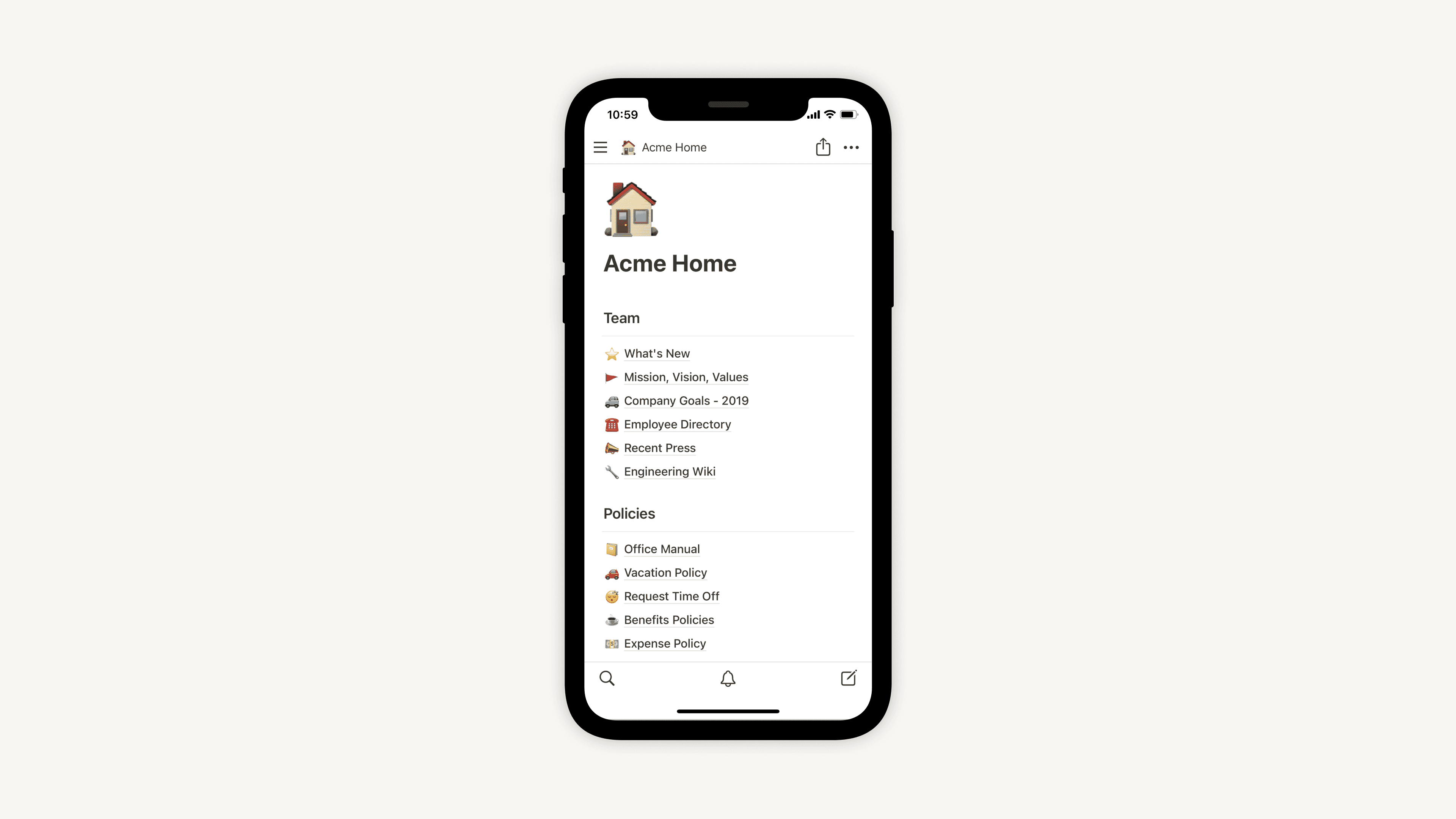
Notion AI on mobile: how to use it (and how to make it actually usable)
You can use Notion AI on mobile. The problem is… you’re still using Notion on mobile.
Yes, Notion AI works on your phone. And yes, you can do real work with it.
But the mobile experience is still the same old story: you open the app “for one quick thing,” the page takes a beat to load, the keyboard covers half the screen, and suddenly you’re three taps away from forgetting why you came.
This guide covers the fastest ways to trigger Notion AI on mobile, then the part that actually matters: routing the thinking through Notis so you can interact with your Notion system from iMessage/WhatsApp/Telegram/email, voice-first, without wrestling the Notion app.
How to use Notion AI on mobile (three entry points)
Notion’s official entry points work on mobile too. The practical difference is simply how quickly you can reach them when your thumbs are doing the driving.
Edit existing text with “Ask AI”
When text already exists on a page, select it and use Ask AI to rewrite, summarize, change tone, translate, and more. This is the most reliable mobile flow when you’re polishing something you already wrote. Notion documents the feature set in its guide to Notion AI for docs: https://www.notion.com/help/guides/notion-ai-for-docs
Start from scratch with /AI
Inside a page, type /AI to insert an AI block, then prompt it. This is the quickest way to generate a first draft when you don’t have anything written yet.
Get quick answers from the space bar prompt
If you just want an answer without fussing with layout, use the space bar prompt entry point to ask a question where you are and keep moving.
iPhone shortcut: get to Notion faster
On iOS, you can set up a Shortcut so Siri launches Notion faster and you spend less time hunting for the right page. Notion’s mobile help doc walks through the basics: https://www.notion.com/help/notion-for-mobile
The two mobile problems nobody wants to say out loud
The first problem is friction. Notion mobile can feel heavy when you’re moving fast, and “wait for the page” is not a workflow.
The second problem is that Notion AI isn’t voice-first. Dictation into a keyboard is fine, but it’s not the same thing as sending a voice note and getting back clean, structured output that lands exactly where it belongs.
That’s how you end up in the classic mobile loop: you try to capture an idea, open three pages, lose your thread, and accidentally start doomscrolling your own workspace.
The fix: keep Notion as the database, use Notis as the interface
Notion holds the system. Notis is the interface.
You still get “Notion AI results,” but you don’t have to go through the Notion mobile tax to get them.
Step 1 — Connect Notis to Notion
Connect Notion once via the Notis portal and authorize what Notis can access. Use the official guide here: https://help.notis.ai/documentation/5pkW8ayiSXYJYmCt4SZPa6/connect-notion/5pMTXeNujEZDgNUdM52bAa
Step 2 — Pick your interface: WhatsApp, Telegram, iMessage, or email
Use whichever channel you already live in. WhatsApp setup is here: https://help.notis.ai/documentation/5pkW8ayiSXYJYmCt4SZPa6/whatsapp/5pMTXeNujFJohwKwSKRg42. Telegram setup is here: https://help.notis.ai/documentation/5pkW8ayiSXYJYmCt4SZPa6/telegram/5pMTXeNujEVgJ58wZbPQXF. iMessage setup is here: https://help.notis.ai/documentation/5pkW8ayiSXYJYmCt4SZPa6/imessage/6dMXYVtoYQ79QGfNB9RDXf. Email works by sending from your registered address to [email protected], and the setup doc is here: https://help.notis.ai/documentation/5pkW8ayiSXYJYmCt4SZPa6/email/5pMTXeNujDZg75n1EonuNo
If you want a channel-by-channel comparison of limits and features, use this reference: https://help.notis.ai/documentation/5pkW8ayiSXYJYmCt4SZPa6/channels-compared/5pkW8ayiSXPUB73gVABQdL
Step 3 — Turn your Notion “Agent Instructions” into Notis automations
If you already have a Notion page that explains how your assistant should behave, don’t rewrite it. Copy the instruction block into a Notis Automation and let that run your outputs.
Automations are also how you wire Notis into other tools, including Notion database automations. The automation docs live here: https://help.notis.ai/documentation/5pkW8ayiSXYJYmCt4SZPa6/automate/5rzKgwMd6N8VXFpTzfix7Z
Bonus: trigger Notis from inside Notion (webhooks)
If you want Notion itself to trigger an action, you can do it with webhook-triggered automations. Use the same automation guide to set it up: https://help.notis.ai/documentation/5pkW8ayiSXYJYmCt4SZPa6/automate/5rzKgwMd6N8VXFpTzfix7Z
What you get: Notion AI results, without the Notion mobile tax
Notion AI is powerful, but it’s still bound by product realities and model constraints, including the standard “may not know about recent events” limitation. Notion calls this out in its own guidance: https://www.notion.com/help/guides/using-notion-ai
The bigger win is workflow. Notis makes your Notion system usable at the speed you think.
Copy/paste prompts to try today
Meeting minutes (voice note). Turn this into meeting minutes. Extract decisions, action items, owners, and deadlines. Save to Notion.
On-the-go clarity. Here are five messy thoughts. Rewrite them into a crisp update for the team, then store it under Weekly Updates.
Task capture. Create a task: update website copyright date today. Put it in my Notis area.

Flo is the founder of Mind the Flo, an Agentic Studio specialized into messaging and voice agents.